Rick Warren Speaks on Meet the Press - Giving

I really enjoyed seeing Rick Warren, the pastor of Saddleback Church in California, speak on giving on Meet the Press with David Gregory. (below)

And what influence he has - not just because he has a platform on national television, but because he actually gives 90% of his income. He has the authority to speak on this subject!

Static Code Analysis - Part 2

In my last post, I showed how you could enable static code analysis for a visual studio project.  However, you can also set up static code analysis at a more global level if you are using Team Foundation Server for source code control.

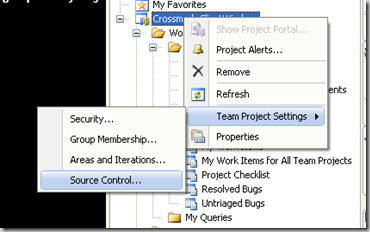
Within a Team Project, you can set up a check-in policy that requires the code to pass static code analysis.  You can do this by simply right-clicking on the Team Project and selecting Source Control from the Team Project Settings.
image

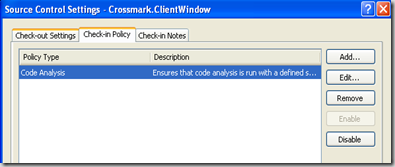
From the Source Control Settings dialog, click on the Check-In Policy tab. and click the Add... button.  (Note - I already have the Code Analysis policy set for my project in the image below.)
image 

Click the Add... button to add a new check-in policy and select Code Analysis from the menu.

image

From here, you should be able set up the rules just as you would at the project level.  Any rules you specify should generate an error when violated, and therefore, the code will not compile.  As a result, the developers will not be able to check-in code that violates any of the rules that you have set for the team.

image

So, if you have already set up rules within your projects, another nice feature in Visual Studio is the ability to synch up your settings in each project with those set at the check-in policy level.  You can do this by selecting the Replace with Check-in Policy under Analyze/Code Analysis Settings for Solution in Visual Studio.

image

All of the settings in your current projects will match those set at the Team Project level.  None of your previous suppressions attributes should have been removed.

Hope this helps!

Static Code Analysis - Part 1

The static code analysis within Visual Studio is a great way of automating initial code review.  In order to turn it on do the following.

1.  Go to Properties within the particular project.

Code analysis can only be enabled at the project level, so the first step is to go to your properties section of each project you want enabled for code analysis.

2.  Go to the Code Analysis tab.

3.  At the top, check the box that "Enable Code Analysis on Build..."

4.  On the right-hand side of the screen, check the box for those rules that you want treated as an error.  (By default it is treated as a warning and will not stop the build process.)

image

Sometimes the rules may not make sense for projects where a lot of code is auto-generated.  In this case, you could leave that rule as a warning in the project settings. 

In other cases, you may want to suppress the errors for particular members of your types or for whole namespaces.  This can be done by right-clicking on the rule violation in the Error List that appears when compiling your project and selecting a Suppress Message option.

image

As seen above, this can either be set within your source or in a project suppression file.  You can learn more about this here.

JSON Serialization in .NET

Many of you may be familiar with the use of JSON (JavaScript Object Notation). It is a very tight syntax for expressing the state of an object and is very widely used in Web 2.0/AJAX style development in which objects are passed back and forth between the client using the XmlHttpRequest object out of band to eliminate the need to do a full page refresh.

I found a great article by Rick Strahl that outlines the pros/cons of two built-in .NET serializers: JavaScriptSerializer and DataContractJsonSerializer. You can read about them here.

After using both methods in my own application, I found that another con of the JavaScriptSerializer that is a pro for the DataContractJsonSerializer class is that it requires a public default, parameter-less constructor. This means that I cannot serialize objects that I also would like to make read-only, and therefore, requires a constructor with the properties defined up front.

One point I wanted to make in this post was that the extension class that Rick defines in his post for simplifying DataContractJsonSerializer usage does not work properly. In order to correct it, I added the 'this' keyword to the first parameter so that .NET recognized the static methods as extensions to the object type. In addition, I converted the FromJsonString() method to a generic FromJsonString<T>() method to allow the return object to be strongly typed.

Code is listed below, if you are interested.

image

Changing the Default Browser in Visual Studio 2008 with ASP.NET MVC

How frustrating!  I spent at least 15 minutes trying to figure out how to change the default browser for debugging to my preferred browser in Visual Studio 2008. 

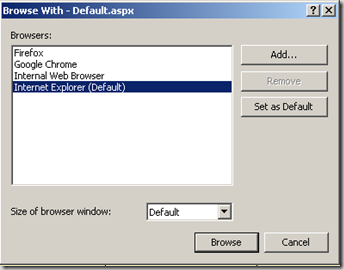
Apparently, with a normal ASP.NET application, you can just right-click on any .aspx file and select 'Browse With...' from the context menu.  The dialog that opens (shown below) has the option to select a browser and click 'Set as Default' button.

image

Unfortunately, the .aspx files in ASP.NET MVC applications don't don't provide this option in the context menu.  The only one that works is the Default.aspx file. 

I found the answer from this helpful blog post.  Thank you, Steve Bodnar! 

My recommendation to Microsoft is to either put this setting in the Tools/Options menu, which seems to be the most natural place to look for this setting, or place it in the Properties of the Web Site/Application project - which might be even better if you want to specify this setting per project.