Team Foundation Server - Identifying All File Changes

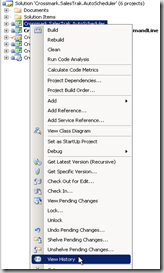
Within Visual Studio 2008, it is very easy to view the Team Foundation Server history of either a given file, project, or solution.  All you have to do is right-click on the particular item, select View History from the context menu, and you are presented with a list of changesets as shown below.

imageimage


From there you can double-click on a given changeset and see the files that were a part of that atomic check-in.

But how do you see a consolidated list of all files that have been modified since a particular date, label, or changeset?  That is a little less intuitive.

The first step is to open the Source Control Explorer from the Team Explorer client window of Visual Studio by double-clicking on the Source Control Explorer node in the tree as shown below.

image

From the Source Control Explorer window, select the node within the project (either Team Project, Solution, Project, or file) and right-click to select Compare.

image

From there you will be presented with the Compare dialog shown below.

image

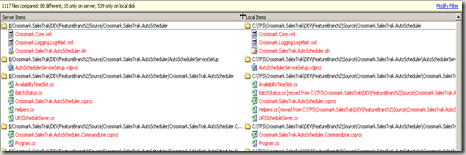
You can select to compare to a Changeset, Date, Label, etc. from the list.  For purposes of this article, we have selected the compare by Date.  Make sure that the only View Option selected in the checkboxes at the end of the dialog is "Show files that are different."  Once you click the OK button, you will be presented with the following window displaying all of the files that have changed, grouped by solution and project.

image

Hope this helps.

The Effective Executive - Part 1

So, I picked up a copy (used, by the way, from Amazon Marketplace for only $0.56 + shipping/handling) of The Effective Executive by Peter Drucker.  It is by no means a new book, being released in 1966, but it has some very valuable wisdom on how to effectively execute as a knowledge worker that is as relevant today as it was then.

I am going to write several posts on the book, because I want to remember the important points from the book, and I would also like to share the most interesting portions with you.  This first post will be a quick intro to the book.

The book is a mere 174 pages, but it takes time to read and digest the content.  The first chapter discusses the need for effectiveness and idea that effectiveness can be learned by anyone. 

What is effectiveness you say?  Well, Drucker makes the distinction of doing the right things rather than do things the right way.  Too many are busy doing work with no clue as to what contribution that work is really making to the organization.

After establishing the fact that effectiveness is important to knowledge workers and that effectiveness can be learned, the author then launches into 6 chapters explaining the most important aspects of practicing the habit of being effective.

1.  Know where the time goes.

2.  Focus on outward contribution.

3.  Build on strengths - individual, peer, superior and subordinate.

4.  Concentrate on a few major areas to achieve results.

5.  Make effective decisions.

I have not read all of the chapters, but just skimming the book has provided invaluable insights into becoming effective.  I will try to discuss each of the aspects above in future posts.

Random Resolution for the New Year 2009

Well, it's that time of year again when we make New Year's resolutions.  I am not a big fan of doing this once a year, because I believe that we should be daily looking for ways to grow and help others.

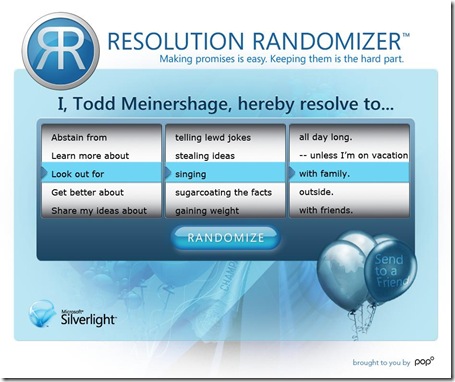
However, I found out about a site that randomly chooses a resolution for you from Caleb Jenkin's blog post today.  It sounded simple enough.  So, here's what it came up with for me.

resolution_randomizer_2009_toddmeinershagen

Pretty appropriate, no?  Try it out by clicking here.

Type-Safe Enum Strings in .NET

One thing that has always bothered me in .NET is the inability to create a type-safe set of string constants like an enum. I would like to create a type such as the following:

public enum StoredProcedure : string
{
DeleteConsumer = "DeleteConsumer",
EditConsumer = "EditConsumer",
GetConsumer = "GetConsumer"
}

This would be incredibly useful for those situations where you are passing constant strings to a given method and you would like to limit the options that are passed to a finite set of options that can be detected through a type-safe check during compile time.

public void ExecuteDataSet(StoredProcedures storedProcedure)
{
SqlCommand command = new SqlCommand();
command.CommandType = CommandType.StoredProcedure;
command.CommandText = storedProcedure.ToString();
}

Unfortunately, a simple constant does not provide type-safe protection for the method call. If a developer is not aware of the pattern, they may end up sending in a literal string of their choosing. So, instead you end up with the following:

public void ExecuteDataSet(string storedProcedure)
{
SqlCommand command = new SqlCommand();
command.CommandType = CommandType.StoredProcedure;
command.CommandText = storedProcedure.ToString();
}

After working at a heterogeneous shop, I learned that Java has been creating their own type-safe string enum classes for solving this situation for years before the formal enum type was added to the 1.5 release of the Java Runtime.

The example below shows how a typical Java developer would implement this concept in Java syntax.

public final class Color {

private String name;

private Color(String name) {
this.name = name;
}

public String toString() {
return this.id;
}

public static final Color RED = new Color("Red");
public static final Color GREEN = new Color("Green");
public static final Color BLUE = new Color("Blue");
}

The basic idea is simple:

1. Define a class representing a single element of the enumerated type

2. Don't provide any public constructors for it.

3. Provide public static final fields, one for each constant in the enumerated type.

Because there is no way for clients to create objects of the type, there will never be any objects of the type besides those exported via the public static final fields.

In order to make this easier to use within .NET, I create an abstract base type, StringConstantBase, that allows a developer to quickly create the functionality above plus some other goodies such as GetNames(), CompareTo(), Equals(), GetHashCode(), and the == and != operators for comparison to string literals.

In order to use the code, you merely define your class as follows:

public class StoredProcedures : StringConstantBase
{
public static readonly StoredProcedures GetConsumer = new StoredProcedures("GetConsumer");
public static readonly StoredProcedures EditConsumer = new StoredProcedures("EditConsumer");
public static readonly StoredProcedures DeleteConsumer = new StoredProcedures("DeleteConsumer");

private StoredProcedures(string name) : base(name){}

}

The only part that does not work (this is the same for the Java version) is that it cannot be used in switch...case statements. Those require the use of an underlying integral type which is not present. Instead, you should use the if...else if construct to perform the same logic.

If you are interested in using the StringConstantBase class for your own code, you can download my Visual Studio 2008 project from here. In addition to the class, I have included a unit test project to include my assumptions on its use.

I hope this helps someone out there...
Turning on Intellisense with Visual Studio 2008

For whatever reason, when I was using Visual Studio 2008 this morning, I noticed that intellisense was not working.  Whenever I typed the period at the end of an object reference, no list of available methods and their associated parameters was made visible as a drop-down. 

I know that I am "man" enough to work without it, but I have come to really enjoy the productivity I get using intellisense - especially when learning a new API.

So, after exploring a bit, I found the settings and am documenting it here, so I don't forget for future reference.

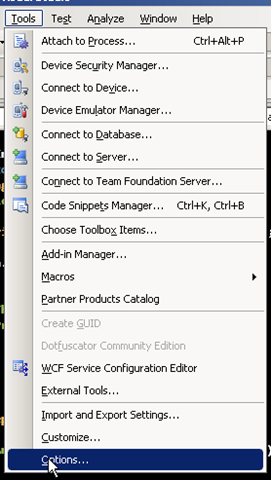
1.  Click on Tools/Options in the upper-menu.

image

2.  Under Text Editor/All Languages navigate to the Statement Completion section at the top of the dialog and check the appropriate settings

image 

There are 3 settings with the following explanation:

  • Auto list members - this is essential for intellisense to begin working.
  • Hide Advanced members - this will allow you to hide those properties, methods, and events that are not often used.
  • Parameter information - by default the auto list members only displays the name of the property, event, or method.  You must have this option checked in order to display the actual parameter information.

I hope this was helpful...